Testing your Translations
Automatic deployment to translation website
Translations you have saved in Localazy are automatically picked by the system at 45 minutes after every hour (UTC) and are usually available for viewing on the SRO Translation website within 5 minutes of being picked up.
Comparing with the English version
It is important that you compare your translated website with the original English version of the website to make sure the meaning and formatting of the translation matches the original.
To do this, open the English version of the website in one browser (e.g Chrome) and the translated version in another browser (e.g. Safari or Edge). Then navigate through the website in both browsers, comparing the content and layout of the pages.
Mobile testing
SRO uses responsive design, which means that the layout of pages adapts to the width of the screen. For each of the scenarios below, it is important you test on a mobile device to make sure the layout is correct.
NOTE: The goal is for the site render correctly on recent phones that are 375 pixels wide (iPhone SE) or wider (most devices). On older phones that are norrower the site should still be usable, but the layout may not be optimal.
As an alternative to using a mobile device, you can use the Chrome browser on your computer to simulate a mobile device. To do this,
- Open Chrome Developer Tools with one of these methods:
- Windows:
Ctrl+Shift+IorF12 - Mac:
Cmd+Opt+I
- Windows:
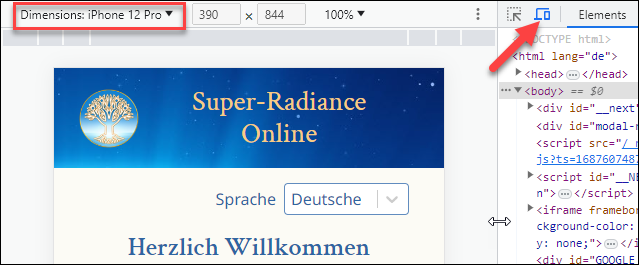
- Click the Toggle Device Toolbar icon (red arrow in image below)
- Select the mobile device you want to simulate from the Dimensions list. Choose iPhone 12 Pro (390 pixels wide) for see how the site looks on most phones. Choose Samsung Galaxy S8+ (360 pixels wide) to see how the site looks on an older phone.
Test scenarios
The table below describes how to navigate through SRO so you can verify your translations.
NOTE: The “…” in the URL column below is a placeholder for https://translate.superradiance.online.
| Scenario | URL | Additional Steps / Notes |
|---|---|---|
| Maximum Sidhas Dialog | … | Enter 21 in Number of Sidhas field |
| Join Dialog | … | Enter name, country & click a session |
| Radiant World program pages | …/program?test=test&theme=radiant-world | NOTE: This displays all program pages. |
| Virtual Dome program pages | …/program?test=test&theme=virtual-dome | NOTE: This displays all program pages. |
| Participants List | …/program?test=test&theme=radiant-world&step=0 | Click participant counter at top of page |
| Totals Page | …/totals | |
| Charts Page | …/charts | |
| Customize Page | …/customize | |
| Help Page | …/help#all | Displays help with all topics expanded. |
| About Page | …/about | |
| Welcome Page | …/welcome | |
| Privacy Policy Page | …/privacy | |
| Copyright Page | …/copyright | |
| Fairfield Dome Home Page | …/join |